OpenAI Ads Manager is a platform that allows businesses and advertisers to create, launch, manage, and monitor advertising campaigns on ChatGPT.
Ads Manager lets you create advertising campaigns, invite team members, set a budget, and monitor campaign performance.
OpenAI Ads Manager is currently in beta, so some features and advertising options may change as the platform develops.
Complete these 8 steps to set up your OpenAI Ads Manager account:
- Check your business’s eligibility
- Create your account
- Invite your team and assign roles
- Understand the campaign structure (Campaign, Ad group, Ad)
- Build your first campaign
- Submit for review
- Monitor performance and reports
- Optimize your campaign
The Short Version
- Create your account using your work email and business details.
- Invite teammates and assign appropriate roles for secure account access.
- Build campaigns with clear objectives, budgets, targeting, and relevant ads.
- Set up billing, then submit your campaign for advertising review.
- Monitor performance, test changes, and refine campaigns using fresh data.
How to Get Started With OpenAI Ads Manager (Step by Step)
Now that you know what Ads Manager does, let’s set it up. The steps below follow the order you’ll actually use them in, from the basics to your first live campaign and beyond.
Take them one at a time, and you’ll have your first ad ready to publish.
Step 1: Check Your Business’s Eligibility
OpenAI Ads Manager self-service access depends on where your advertising and billing legal entity is based. The legal entity responsible for advertising and billing must be based in a country listed on OpenAI’s Ads Manager availability page.
According to the availability list reviewed on October 6, 2026, self-service access was available in 63 countries. It is now available in 89 countries. As of the last update on October 21, 2026, 26 countries were added.
Advertisers in some newer European markets can get started through the Ads Solutions team or approved partners rather than self-service sign-up.
Remember
Check the availability page before creating an account because country eligibility and access options can update.
Ads are visible on the Free and Go plans. Plus, Pro, and Enterprise subscriptions will remain ad-free.
Step 2: Create Your Account
Start by signing in to ads.openai.com using your OpenAI account. You can use your existing account or create a new one with your work email address.
You will also need billing details before your campaigns can deliver. Ads Manager asks for them when you publish your first campaign (see Step 6).
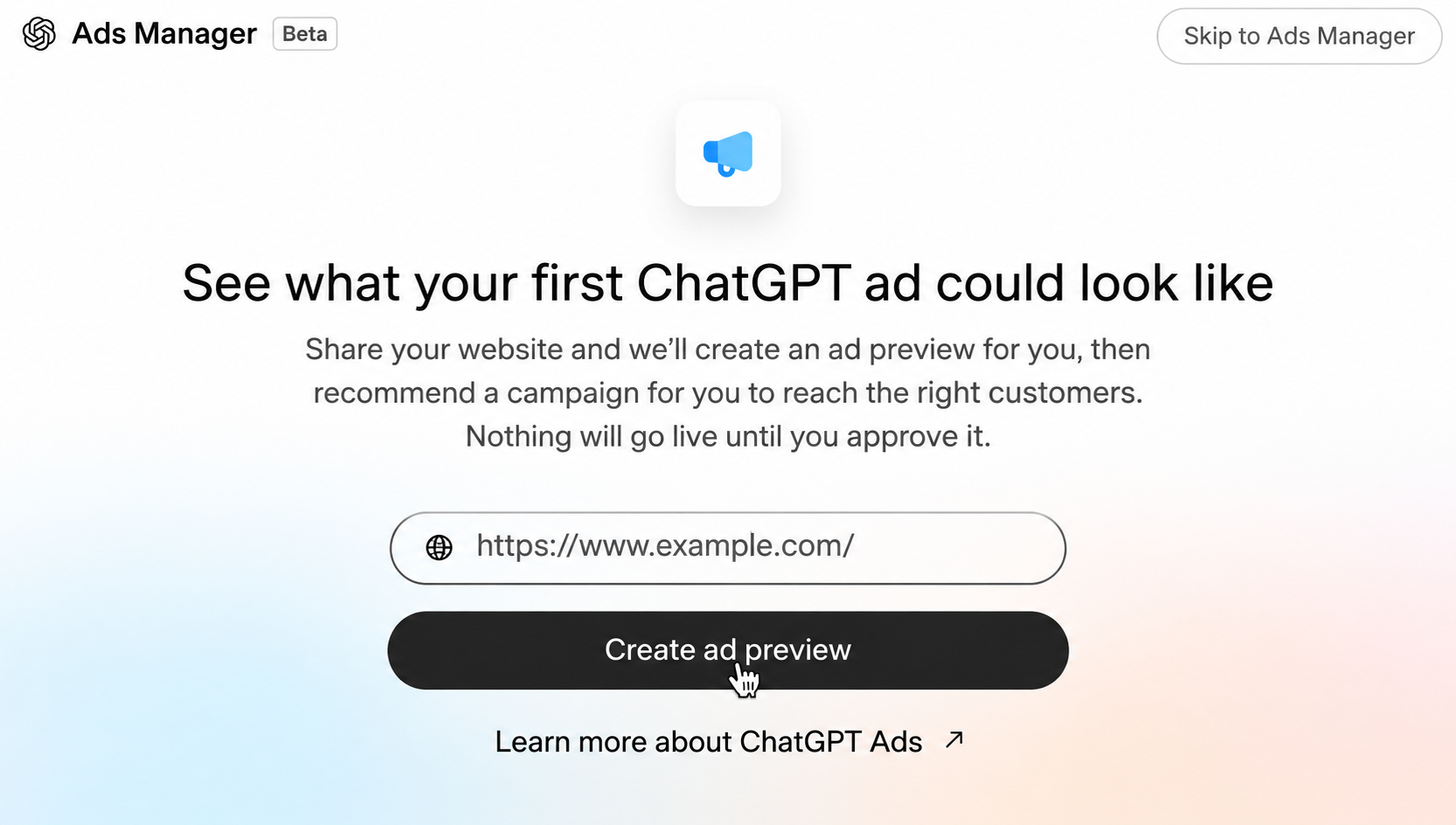
Paste your website into the window shown below, and Ads Manager will create a mock ad preview for you.
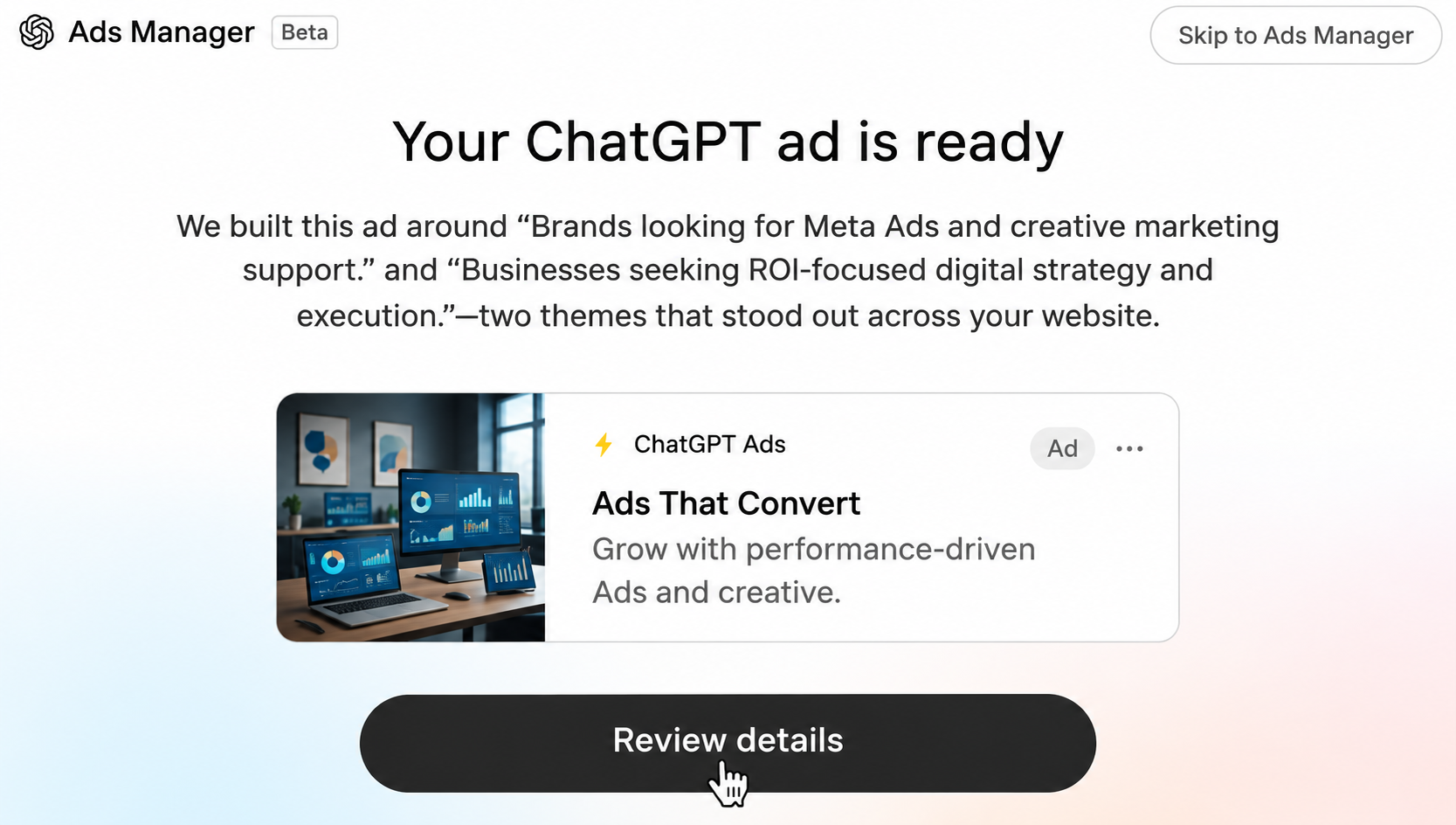
If you don’t want to use the mock ad, click Skip to Ads Manager. A window will pop up; click Continue.
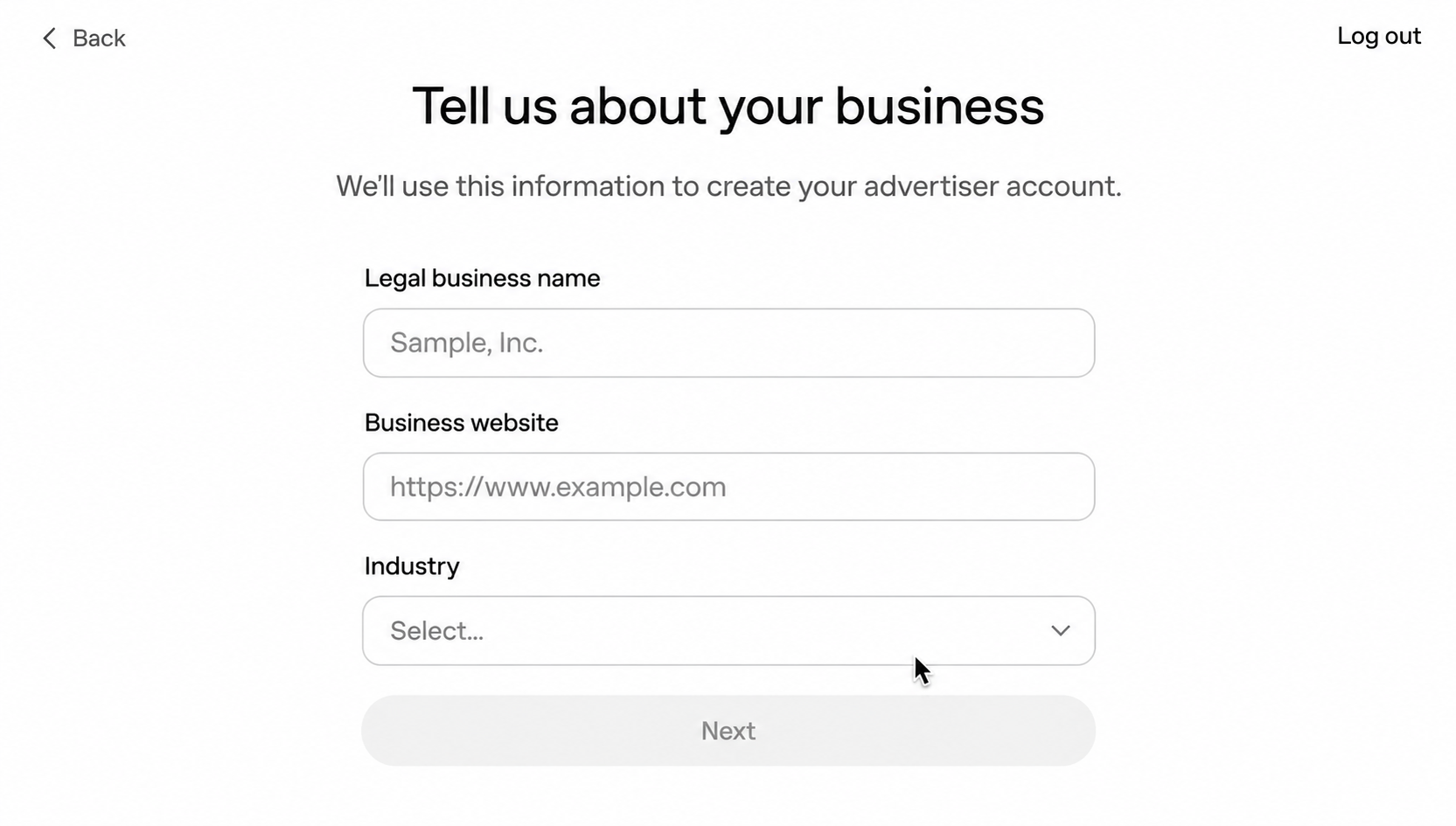
Enter your legal business name, website, and industry. Then confirm your country, currency, and time zone, and click Create Advertiser Account.
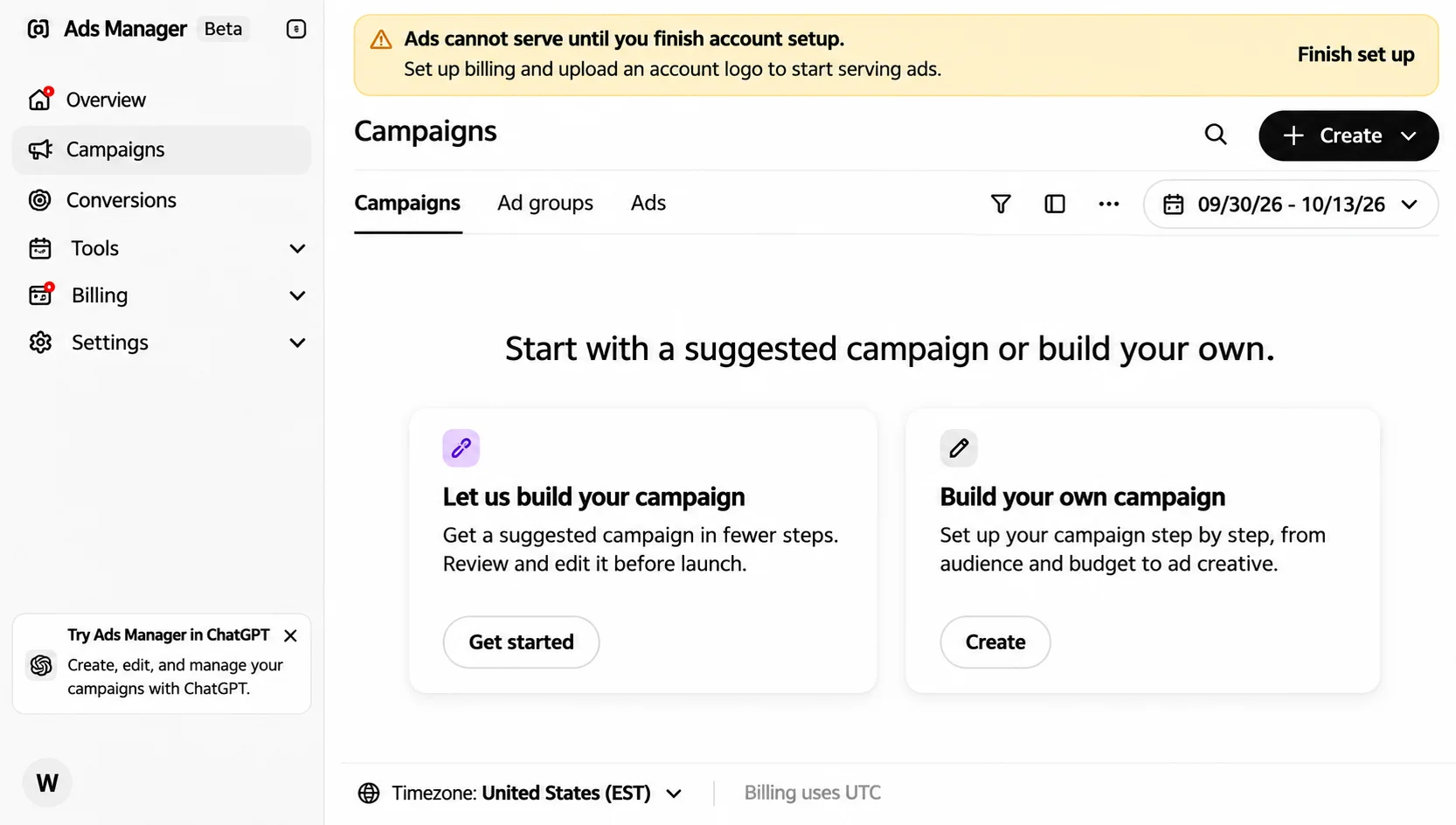
You’ll land on the main dashboard of Ads Manager. It includes Overview, Campaigns, Conversions, Tools, Billing, and Settings.
Step 3: Invite Your Team and Assign Roles
After creating your account, you can add your team members to Ads Manager. This helps if more than one person manages your ads, such as a marketer, designer, or accountant.
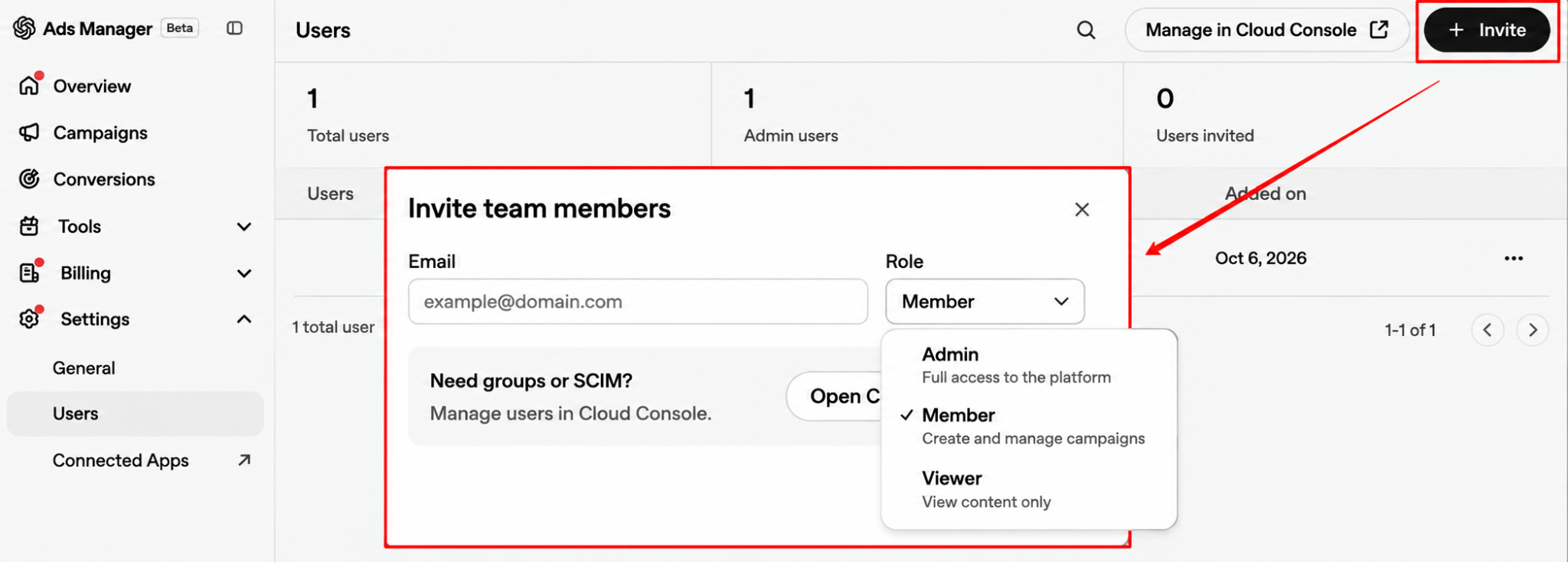
Here are the exact steps to invite your teammate:
- Go to Settings in the left menu of Ads Manager.
- Open Users, then click Invite.
- Enter the email address of each person who needs access.
- Assign a role to each person.
- Send the invitation and ask each person to accept it. Access starts only after they accept the invitation.
Use these role descriptions throughout the article.
| ROLE |
WHAT IT MEANS |
|---|---|
| Admin |
Full access to the platform |
| Member |
Create and manage campaigns |
| Viewer |
View content only |
Give admin access only to the people who really need it. For example, a marketer can be a Member, and your accountant can be a Viewer.
Good to Know:
- If your company already has an OpenAI tenant, ask your admin to give you the Ads Admin role in admin.openai.com. Ads Admin can create advertising accounts, but it doesn’t automatically give access to existing ones.
- Being a member of an account doesn’t mean you are an Admin. If you need Admin access to finish setup, ask an existing Admin to change your role in the Users tab.
- Single sign-on (SSO) lets you access multiple company tools with one login, but it doesn’t automatically grant Ads access.
- If you are an agency, ask your client to create the account first. Then they can invite you from the Users tab.
If someone can’t open Ads Manager, check three things: the account they selected, the work email they used, and whether they accepted the correct invitation.
Step 4: Understand the Campaign Structure
Every campaign in Ads Manager has three levels: Campaign, Ad group, and Ad.
- The campaign sets the objective, budget, dates, and targeting.
- An ad group is a set of ads built around one theme, with context hints and bidding settings.
- An ad is what people actually see in ChatGPT.
Ad Format
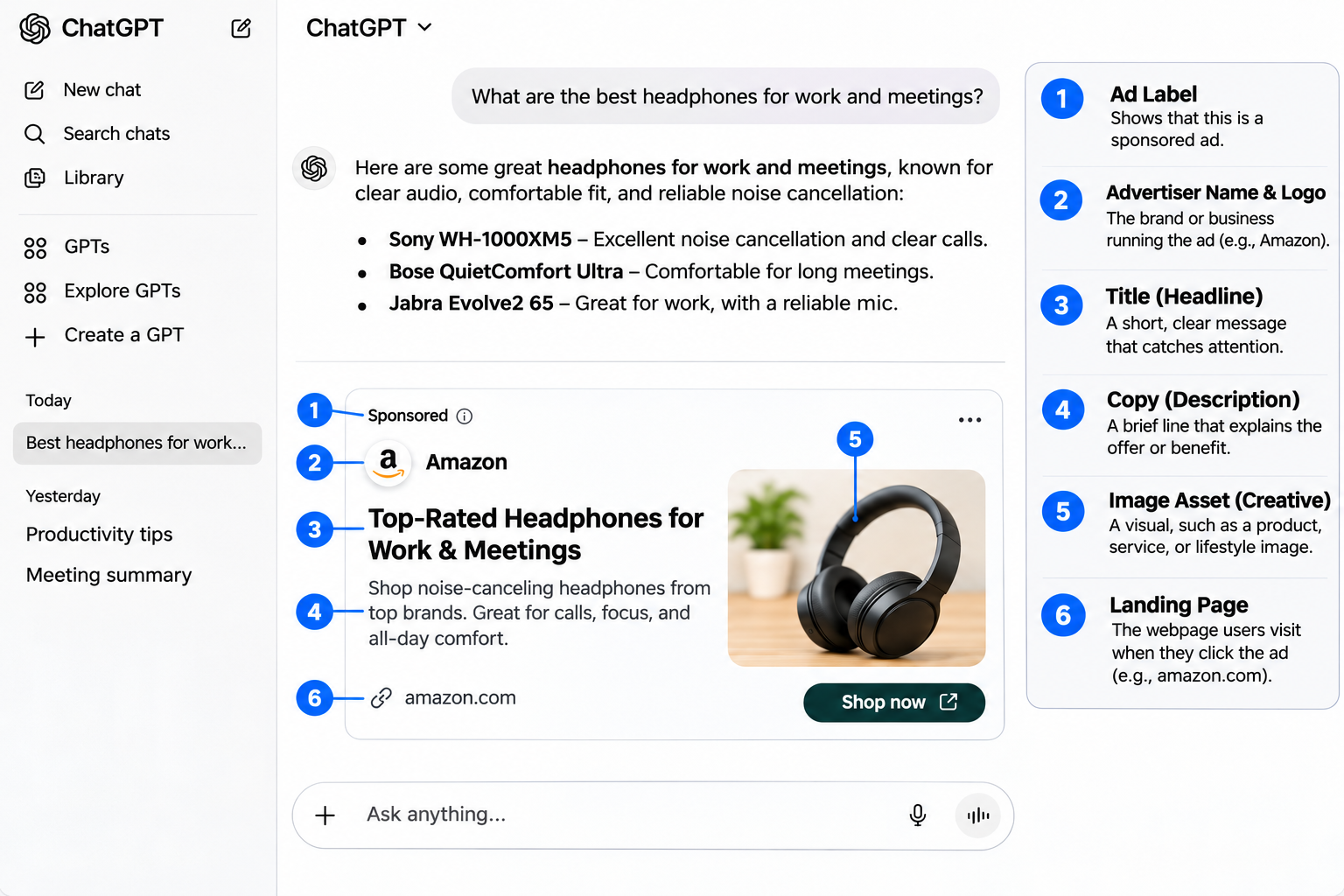
Ads appear below ChatGPT’s response. Each ad has these parts:
- Advertiser Name
- Favicon (Advertiser Logo)
- Title (Heading)
- Copy (Description)
- Landing Page
- Image Asset (Creative)
The following image shows each part.
Check these requirements before creating your ad.
| ELEMENTS |
REQUIREMENTS |
|---|---|
| Ad Title |
16-24 characters are recommended; 50 maximum |
| Ad Copy |
32-48 characters are recommended; 100 maximum |
| Image |
PNG or JPG, square, no larger than 1,200 * 1,200 px, publicly accessible |
| Landing Page |
Valid, reachable URL that isn’t blocked by OpenAI crawlers |
Ads Selection and Delivery
OpenAI shows ads based on how relevant they are to a person’s conversation. It considers factors like topic relevance.
When you set up an ad group, you can add context hints. These are short descriptions of the conversations, topics, or keywords where your product or service might be useful.
Context hints guide which conversations your ads match. They are not exact-match keywords, and they don’t guarantee your ad will appear in any particular conversation.
Best Practices for Your Ads Campaign
- Give each business goal or initiative its own campaign.
- Use separate campaigns for different objectives, regions, or product types.
- Use consistent names so reports are easy to read and manage.
- Create several ad groups in each campaign to try different themes, selling points, and messages.
Step 5: Build Your First Campaign
Go to the campaign section and click Create. You’ll see two options: create a campaign or bulk campaigns.
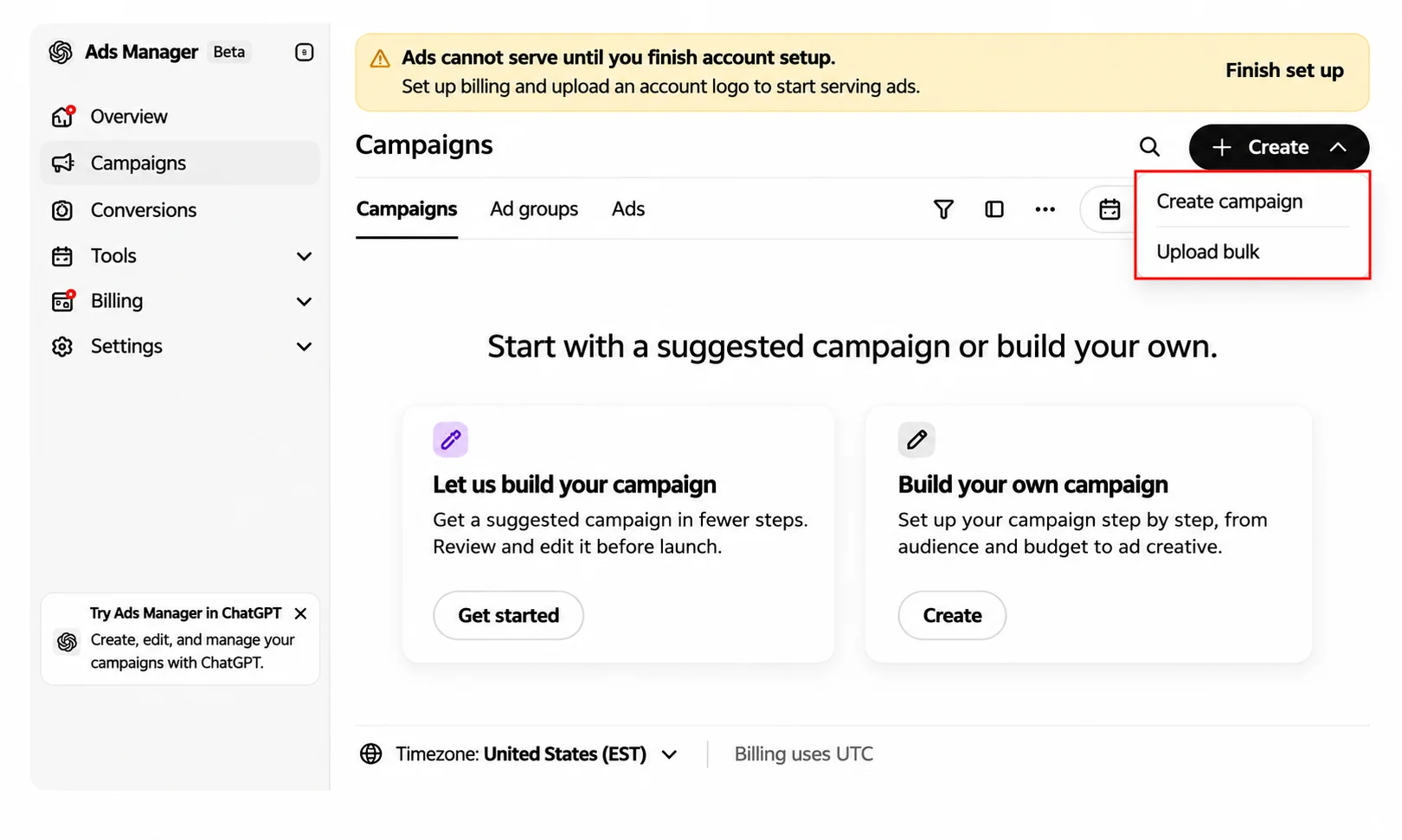
Click on Create Campaign. A screen like the one below opens. The left panel shows three levels: campaign, Ad group, and ad.
At the campaign level, the details fill in automatically from the information you provided earlier. Use the edit option to change anything.
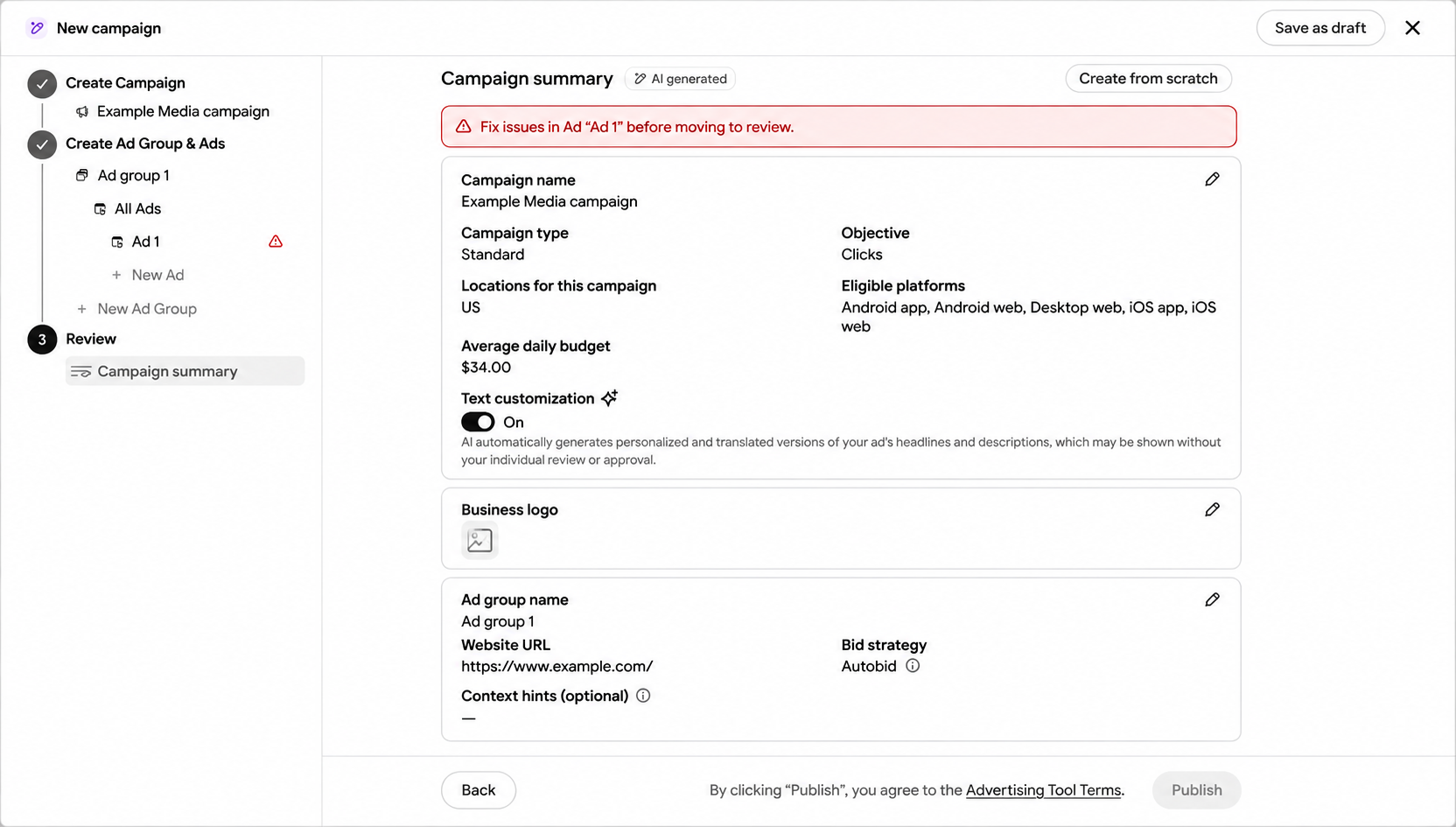
Choose Your Objective
You can select one of three campaign objectives:
- The Views option shows your ad to more people and increases visibility.
- Clicks option aims to get more people to click your ad and visit your website.
- Conversions option optimizes your ad delivery toward actions such as purchases, sign-ups, or lead submissions.
Clicks are selected by default because the conversion API (Pixel) isn’t set up yet. Once you set it up, you can run conversion-event campaigns on ChatGPT.
What is Conversion API (Pixel)?
Meta and Google offer similar tools: Meta’s Conversion API and Google Tag Manager. ChatGPT recently launched its own version. It lets you track impressions, clicks, and conversions and see the results in your Ads Manager dashboard, making tracking and reporting easier.
To start tracking these actions, you’ll first need to create and install your pixel.
How to Create My First Pixel?
Click Set up conversions, then click Create in the pop-up. This creates a pixel ID. Paste it into your website’s HTML header to integrate your pixel.
Set Your Location
Next, choose where your ads should run. For example, select the United States, then pick specific areas by ZIP code. You can also exclude areas by selecting their ZIP codes.
Set Your Budget
Scroll down to the budget option. You can choose a daily budget or a campaign budget. Select Daily budget.
Minimum budget requirements vary by billing currency. Check OpenAI’s official campaign creation instructions for the latest requirements. For the USA, the minimum is 25 USD.
Ad Group Settings
In the ad group, you can set the bid strategy, destination URL, tracking parameters, and context hints.
You’ll see two bid strategies: Autobid and Maximum CPC (cost per click). Maximum CPC lets you set the most you’re willing to pay per click. For first-time use, we recommend Autobid, where ChatGPT decides the amount for you.
Next, enter your Default Ad Destination URL. This is your landing page.
Then come the context hints, an important part of your setup.
What are Context Hints?
Context hints describe the topics, keywords, and products people search for or discuss with ChatGPT.
Describe a scenario users might ask about, and add 3 to 4 questions or topics. Keep them relevant to your business.
If you find them hard to write, OpenAI offers a plugin called Ads Manager in ChatGPT.
You can use it to ask questions about your campaign. However, it can’t manage billing, verify your account, review policies, or guarantee ad delivery.
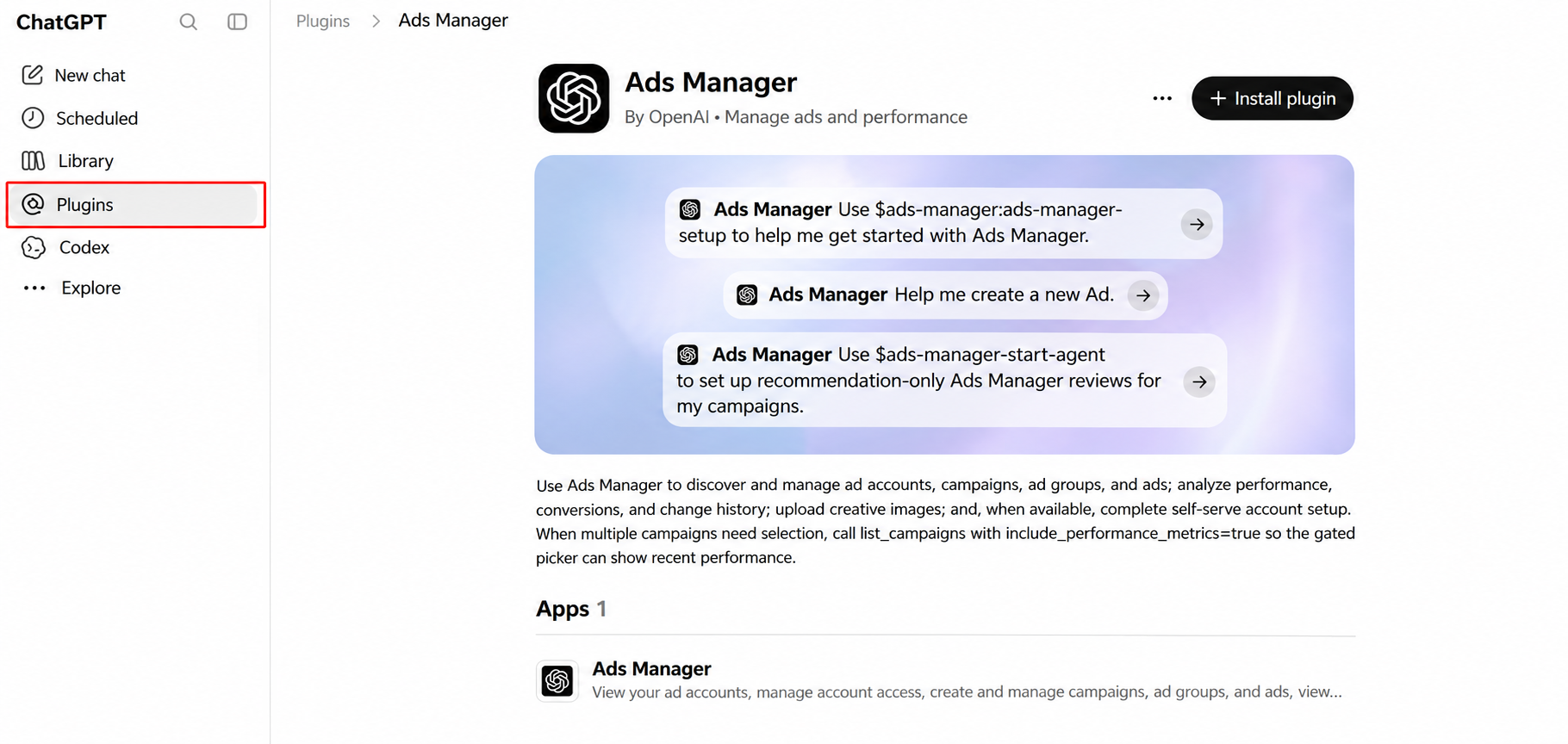
Install the plugin to get help with your advertising campaign questions.
Create Your Ad
Next, click “Next: All Ads” to go to the Ads section, where you can create your ad.
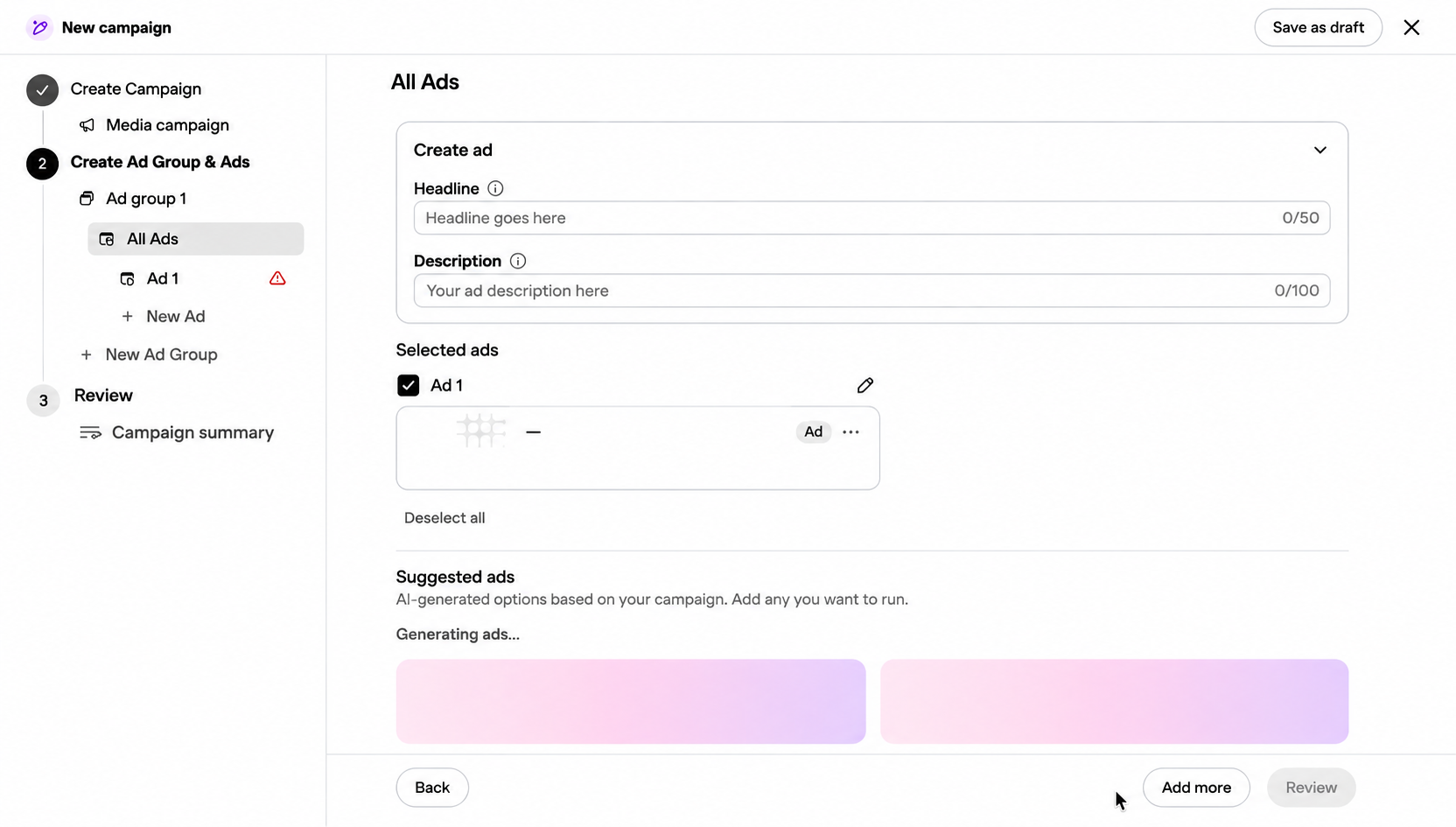
Fill in the ad headline (up to 50 characters), description (up to 100 characters), ad image, destination URL, and ad name. Click Create ad, then click Review once the ad is created.
Step 6: Submit for Review
On the campaign summary, click Publish. A pop-up will ask you to complete your account setup. It includes two requirements:
- Set up billing andadd your payment details.
- Upload account logo by adding your advertiser’s logo.
Click Complete account setup after providing the required information. You can also select Complete later, but your ads may not serve until both requirements are completed.
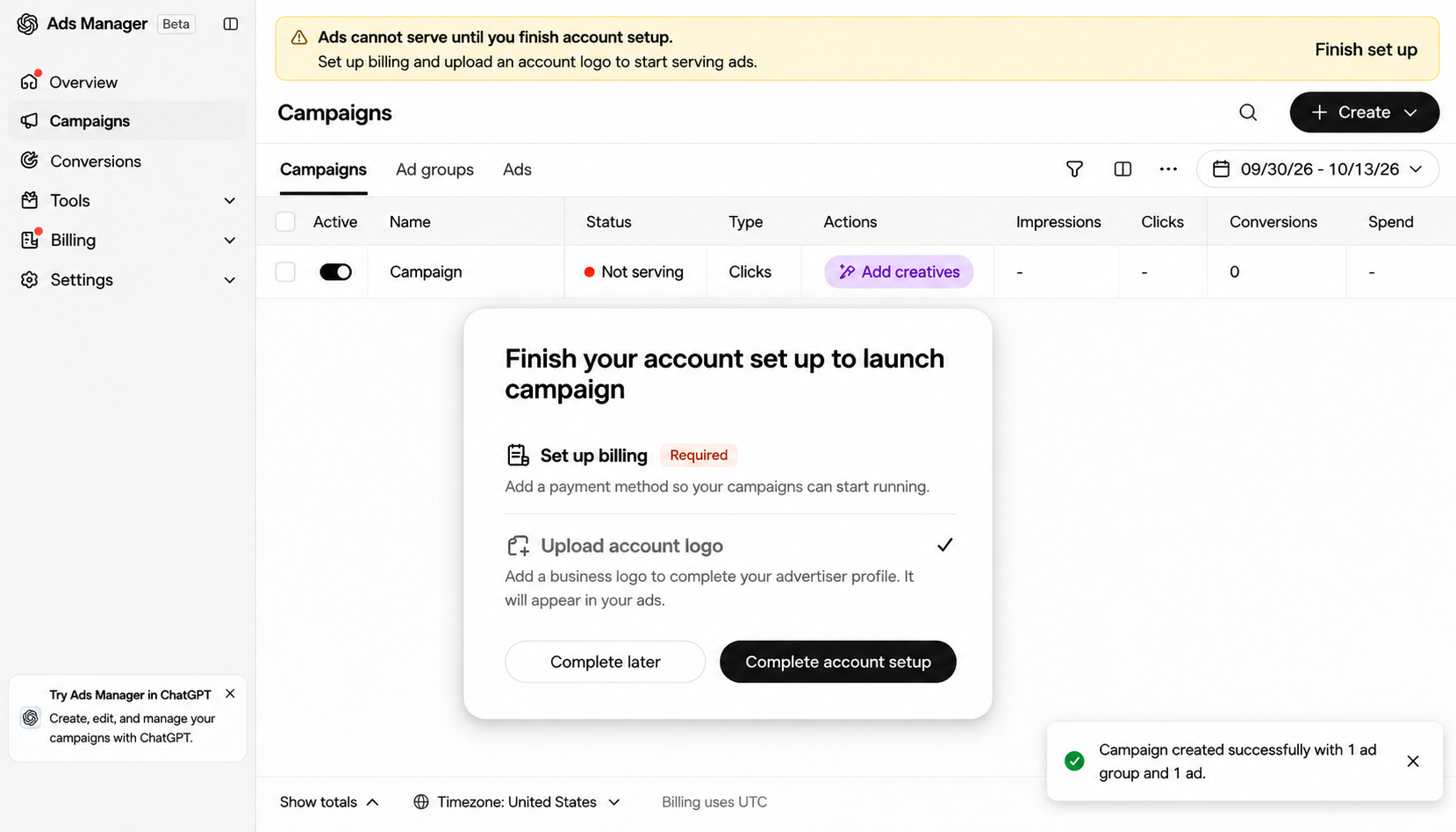
After setup, check the account overview for the brand review status. Your account may still be under review, and ads may not serve until that review is complete.
Step 7: Monitor Performance and Reports
Once everything is complete, you’ll see all your ad details on the dashboard.
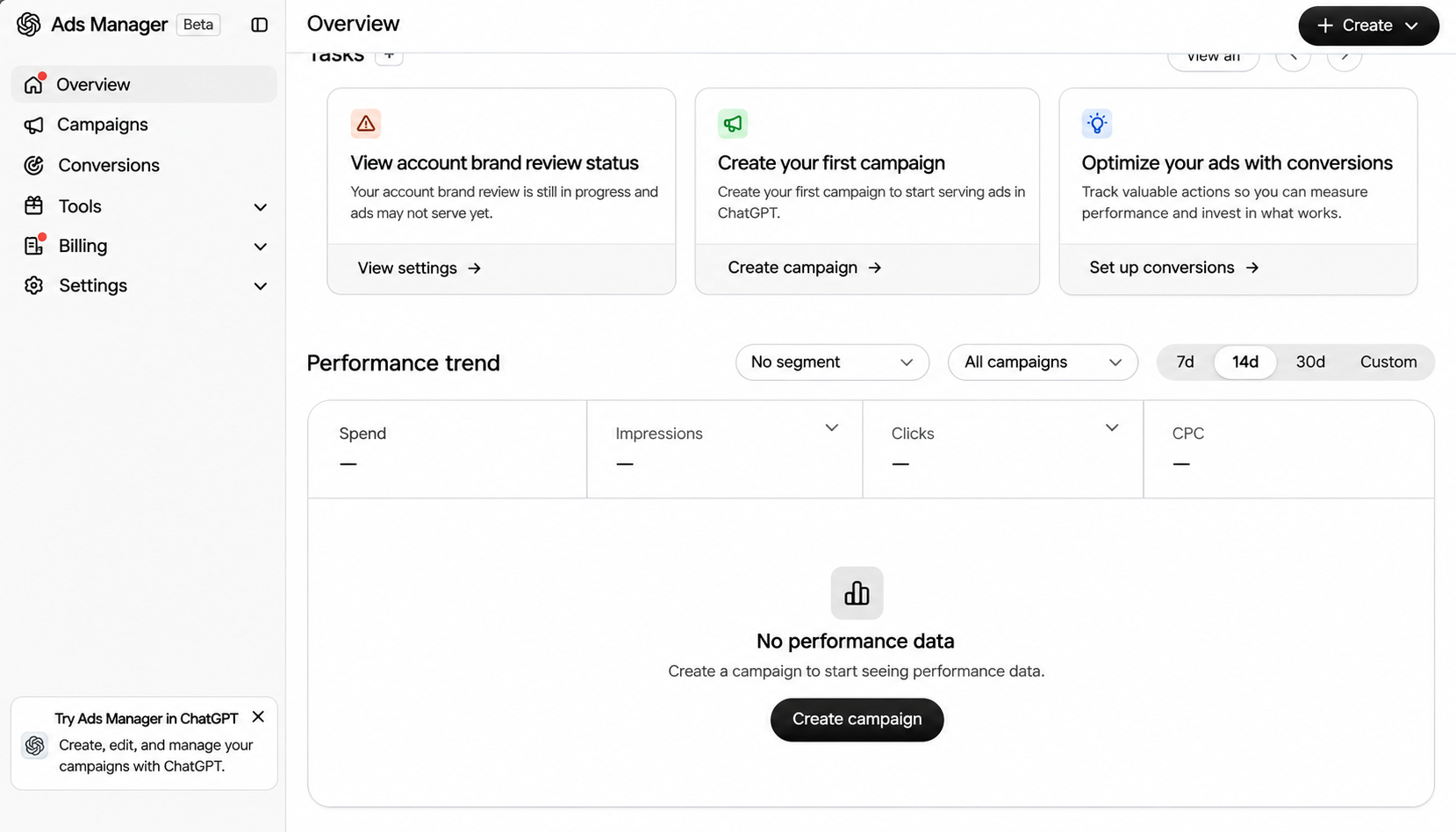
The Overview section shows your performance: spend, impressions, clicks, and cost per click.
You can view the data by segment and location, and for 7 days, 14 days, 30 days, or a custom date range. It will look like the image below.
Step 8: Optimize Your Campaign
Your work doesn’t end once the campaign goes live. Optimizing means checking your results and making changes over time to improve them.
- Review your results in the overview, including spend, impressions, clicks, and cost per click.
- Make changes using in-line edits for small fixes and bulk edits for big ones.
- Test new ideas by trying new ad groups and messages, changing only one thing at a time.
- Improve context hints by updating them with topics and questions your customers actually ask.
- Repeat these checks and changes, and wait for new data; then keep what works.
Note:
According to OpenAI’s reporting documentation
- Impressions, clicks, and click-through rate (CTR) update about every 15 minutes.
- Spend can take 7 to 8 hours to show. A $0 spend total alongside live clicks doesn’t necessarily mean you haven’t been charged.
- Attributed conversions can take 24 to 48 hours to appear in Ads Manager.
Start Your First Campaign With ChatGPT Ads
OpenAI Ads Manager makes it easy to reach people on ChatGPT. Start small with one campaign, use Autobid, review your results often, and improve one thing at a time.
Since the platform is still in beta, keep an eye on OpenAI’s official documents for updates.
Not Sure Where to Begin With ChatGPT Ads?
Get expert support with campaign setup, prompt mapping, ad creative, tracking, and ongoing optimization.
Is OpenAI Ads Manager the same as Google Ads Manager or Meta Ads Manager?
No, it’s OpenAI’s own platform for ChatGPT ads, and Google’s and Meta’s tools are separate products from other companies. Search results for the name mix them together, so check the address: this one lives at ads.openai.com.
How much do OpenAI ads cost?
What you pay depends on the objective you choose, which is the goal you set for a campaign, according to OpenAI’s Billing and Payment page. A views objective is billed per 1,000 impressions, and a clicks objective is billed per click. A conversions objective is billed per click or per 1,000 impressions, and never per conversion.
ChatGPT Ads uses a postpay model, so OpenAI charges after your ads have been delivered. The smallest daily budget you can set varies with your account’s billing currency. OpenAI’s Create Campaign page lists the minimum for each currency, so this tour leaves the number out.
Do I need OpenAI’s Ads team or an agency to get in?
Not where self-service is available, because you can sign up directly through Ads Manager. OpenAI’s page also says that, as of October 6, 2026, advertisers in the new European markets can start through the Ads Solutions team or its partners; larger advertisers with more complex needs can contact the OpenAI Ads team for sales support.
If you’d rather hand off campaign building and day-to-day management, you can also use a ChatGPT ads management service. You still create the advertiser account yourself and then invite the provider as a team member, because there is no agency manager account.
Can multiple people use the same OpenAI Ads Manager account?
Yes, because each team member gets a role on the advertising account, which controls who can manage ad campaigns and view marketing reports.
For example, a founder can open the account and launch ad campaigns, while a freelancer can check ad performance results such as impressions, clicks, and spend.
Give the freelancer the Viewer role, and they can view Ad performance reports without changing ads or budgets.
Do ChatGPT ads replace the need for organic visibility?
No, they cover different ground. Ads run as long as the budget does, and the visibility stops when spending stops. Organic visibility comes from content and links built up over time, and it keeps working after a campaign ends.
Many advertisers run both, the organic side can be built in-house or with an established link building agency while ads cover near-term reach.