You get YouTube backlinks two ways: earn links from other websites to your videos, and place links to your site inside YouTube.
Links from other sites that point at a video are YouTube video backlinks.
They help people and search engines find that video.
Links you add on YouTube, in descriptions, pinned comments and your channel profile, send viewers from a video to your website.
Neither kind is a shortcut to Google rankings for your site.
YouTube routes outbound links through its own redirect and marks description links nofollow.
So count on them for visitors, not ranking credit.
Key Takeaways:
- Links from other websites to a video help people and search engines discover that video.
- Description links on YouTube are nofollow, so value them for referral visitors, not rankings.
- Clickable links in long-form descriptions need advanced features, and Shorts description links are not clickable.
- Tag every YouTube link with UTM parameters so GA4 shows which video sent the visit.
What Are YouTube Backlinks
A YouTube backlink is a link that connects YouTube and another website, in either direction.
A website linking to your video is one kind.
A link from your video or channel to your website is the other kind.
If you’re new to what backlinks are, the idea is one page pointing to another.
A link on its own guarantees no trust or rankings.
What matters is how search engines treat the link and what people do after they click it.
How Google Treats Links
Google treats a link differently depending on the rel attribute the linking site adds to it.
Dofollow Link
A dofollow link is a normal link with no restricting rel value, and it can pass link equity between pages.
Most links on blogs and articles are dofollow by default.
When rankings are the goal, dofollow backlinks from relevant sites are the ones to pursue.
Nofollow Link
A nofollow link tells search engines the site doesn’t want to imply an endorsement or pass ranking credit.
Since Google’s 2019 nofollow announcement, Google treats nofollow as a hint rather than a strict rule.
That matters here because YouTube marks video description links nofollow.
How to Earn Backlinks for Your YouTube Videos
You earn backlinks to your YouTube videos by making videos other sites want to cite and showing them to writers.
The seven steps below run in that order: make it worth linking, make it easy to trust, then get it seen.
Step 1: Create Videos That Are Worth Referencing
Websites reference a video when it explains something better than their own text can.
Keep each video to one topic, and make the explanation clear and practical.
Videos that earn links usually do at least one of these things:
- Answer a common question clearly
- Explain a process step by step
- Offer practical tips or examples
- Have clear audio and visuals
When people find your video helpful, sharing it becomes natural.
Step 2: Build a Trustworthy Channel Profile
A trustworthy channel profile makes site owners comfortable linking to your videos.
Many site owners check the channel before they link, to see who made the video and whether the source looks reliable.
A profile that earns that trust has three traits:
- A clear niche, so people understand your focus
- The same name, logo and style across your channel, site and social profiles
- A description that says what the channel covers and who it helps
Step 3: Create Videos That Websites Can Embed
Videos that websites embed are short, focused and built around topics people already search for.
Site owners embed a video when it explains a point faster than they could in writing.
Cut anything that doesn’t serve the one point the video makes, because a writer embeds a video to save their reader time.
Step 4: Turn Each Video Into a Blog Post
Turn each video into a blog post on your own site, with the video embedded and the key points written out.
The post gives the video a second audience, and readers can choose to read or watch.
One detail matters here.
YouTube’s page on how to embed videos and playlists shows that the embed code is an iframe, not a standard text link.
Add a plain text link to the video under the embed if you want a normal link pointing at it too.
Step 5: Share Videos in the Right Places
Share each video where people already discuss its topic: relevant newsletters, niche forums and topic-focused social groups.
A video on speeding up websites belongs in web development communities, where performance is already a talking point.
Those are the places where the people who write articles and cite sources spend their time.
Step 6: Collaborate With Other Content Creators
Collaborating with other creators puts your video in front of an audience that already cares about the topic.
Pick creators who serve a similar audience, cover related topics and share a similar style.
Those partnerships lead to mentions, embeds and links because the fit is obvious to both audiences.
Step 7: Use Outreach Carefully and Selectively
Outreach works when your video clearly improves someone else’s page.
Offer the video as a better explanation for their readers, not as a favor you’re asking for.
A short message is enough:
Hi,
I created a short video explaining [topic name] and thought it might be helpful to your audience. If it adds value to your content, feel free to embed it as a reference.
Here’s the link: [YouTube Link]
Thank you for your time.
Best regards,
[Your Name]
Only contact sites where the video truly fits.
Targeted SEO outreach beats bulk messaging, because each pitch fills a real gap on the page.
Where and How to Add Website Links on YouTube
YouTube gives you six places for website links: video descriptions, pinned comments, channel profile links, posts, info cards and end screens.
Several of them only become clickable once your channel has advanced features, which YouTube grants through channel history or ID verification.
The table shows what each placement needs, based on YouTube’s own help pages.
| Placement | Who can use it | Clickable? | On Shorts? | Best use |
|---|---|---|---|---|
| Description | Advanced features | Yes | No | Main resource |
| Pinned comment | Advanced features | Yes | No | One next step |
| Channel links | Any channel | Yes | Channel page | Homepage |
| Posts | Advanced features | Yes | Not documented | Announcements |
| Info cards | Partner Program | Yes | Not documented | Mid-video link |
| End screens | Partner Program | Yes | Not documented | Final next step |
| Related Video | Advanced features | YouTube only | Yes | Long-form video |
YouTube’s page on sharing links with your audiences says URLs in Shorts comments and Shorts descriptions aren’t clickable.
The same page says clickable external links in long-form descriptions, comments and posts need advanced features.
YouTube’s feature access guide for creators lists pinned comments and the Shorts Related Video link as advanced features too.
Video Description Links
The video description is the best place for your main link, because viewers look there for resources named in the video.
Link to the page the video promises: a guide, a checklist, a tool or a product page.
Say what the viewer gets before the link, for example: Get the full checklist here: yoursite.com/checklist
How to add a link in the video description:
- Open YouTube Studio
- Click Content and select the video
- Click Details
- Paste your main link at the top
- Write a short video summary
- Add any extra helpful links
- Click Save
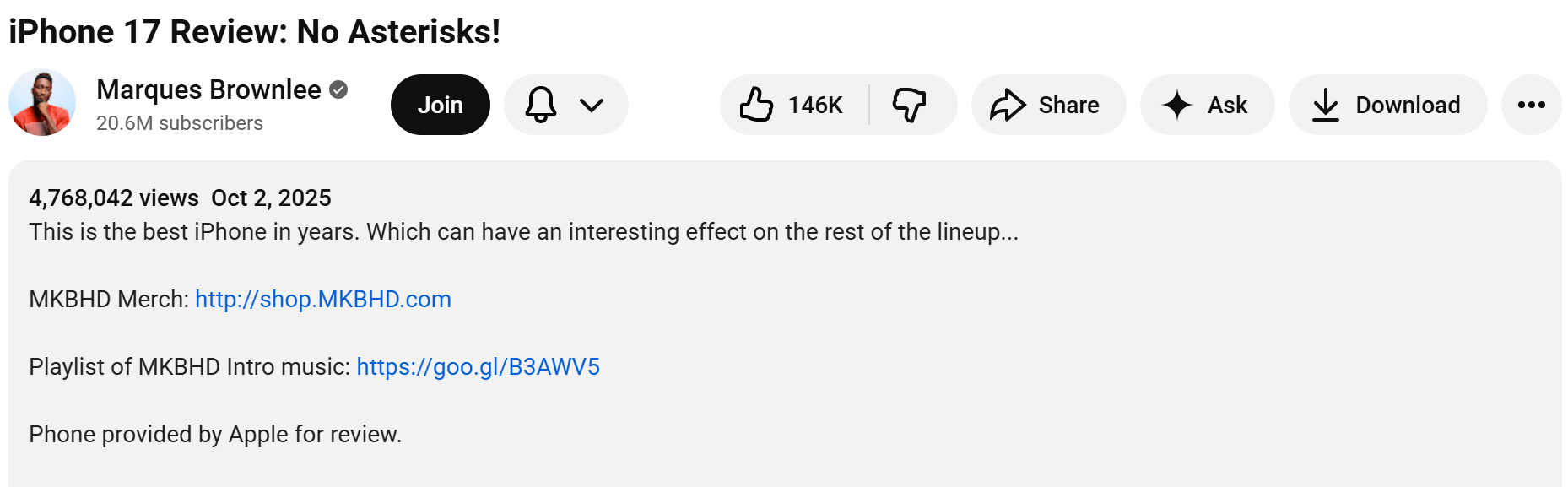
Place your most important link in the first lines, so viewers see it without expanding the description.
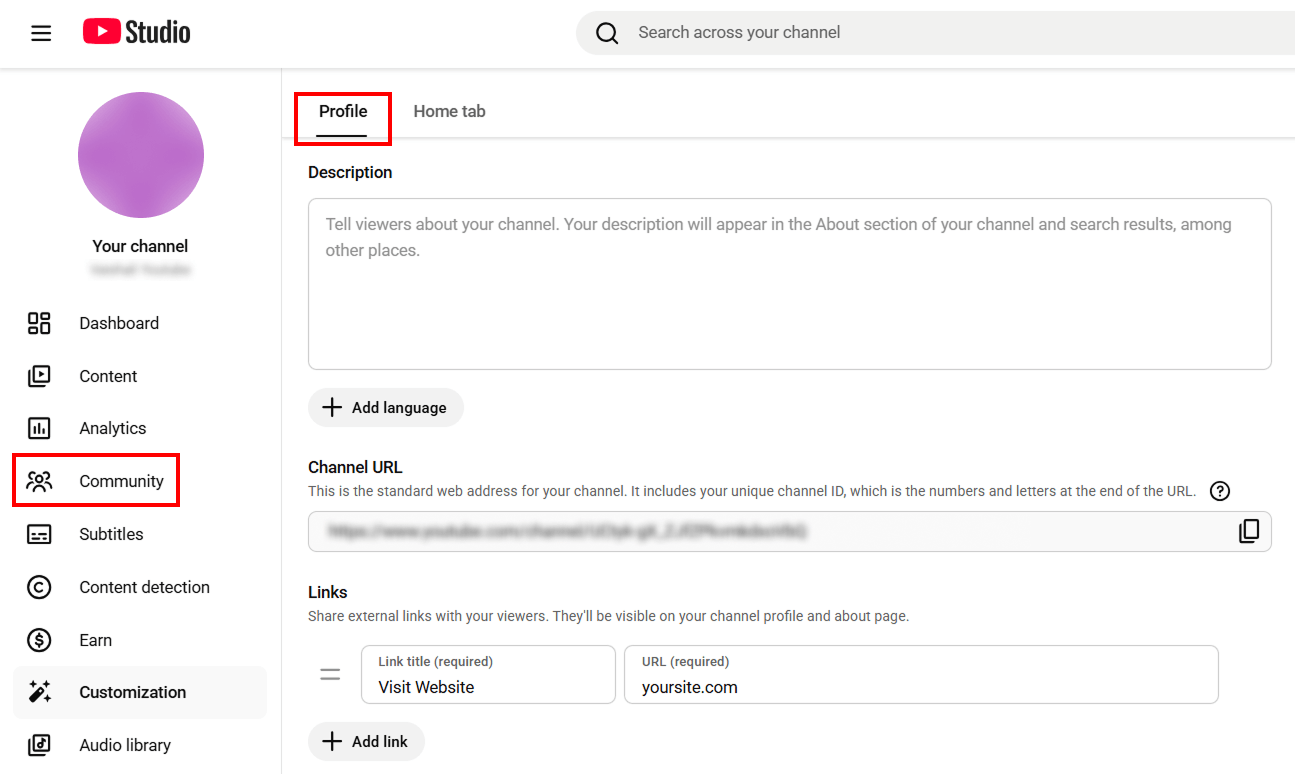
Channel Profile Links
Channel profile links are up to 14 links shown on your channel.
They suit permanent pages like your homepage or services page.
Your first link shows in the profile section near the Subscribe button.
The rest appear when viewers click to see more links, according to YouTube’s guide to managing your channel profile.
How to add channel profile links:
- Sign in to YouTube Studio
- From the left menu, select Customization, then Profile
- Under Links, click Add link
- Enter the title and URL of your page
- Click Publish
Pinned Comment
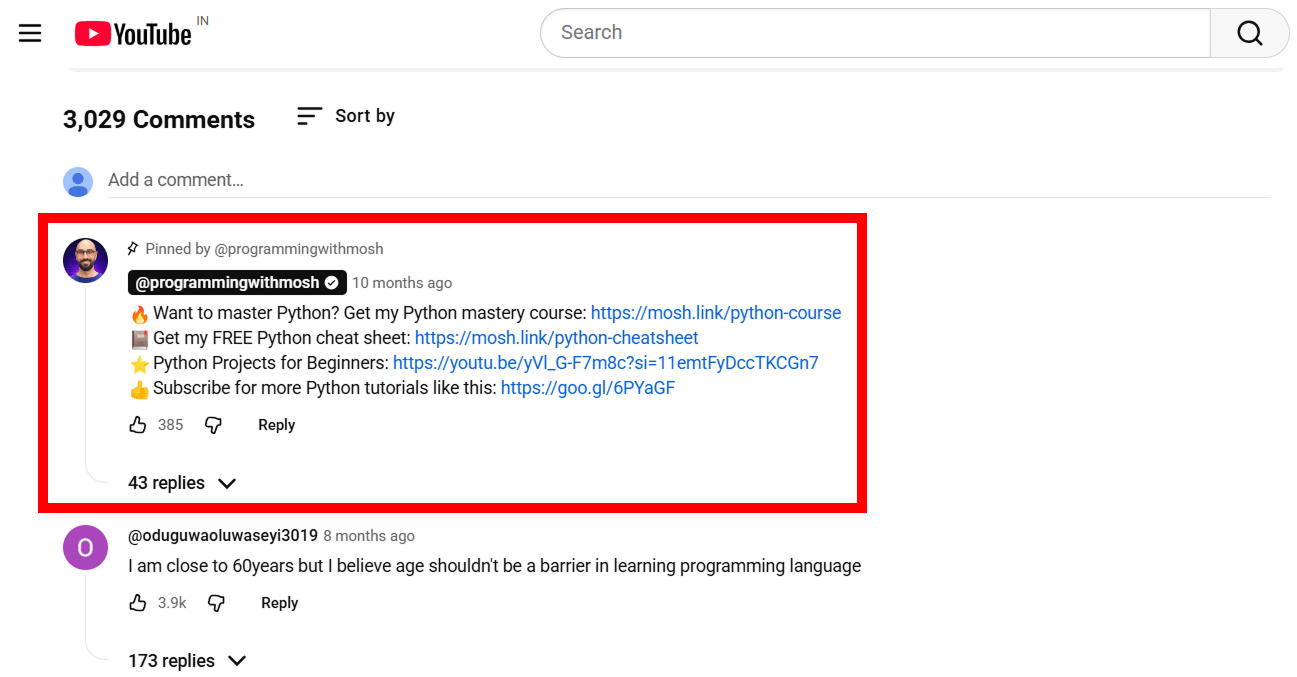
A pinned comment stays at the top of the comments, so it catches viewers who scroll down after watching.
Pinning comments is an advanced feature, so check your access before you plan around it.
Use the pinned comment for one clear next step, such as a related article or free resource.
How to add a link in a pinned comment:
- Post a comment that includes your key link
- Click the three-dot menu next to the comment
- Select Pin so it stays at the top
Card Links
Card links sit inside info cards, small panels viewers can open during a video.
You can add up to 5 cards to one video.
Link cards to outside websites need the YouTube Partner Program, per YouTube’s guide to adding info cards to videos.
How to add a card link in YouTube:
- Sign in to YouTube Studio.
- Select Content from the left menu.
- Click the video you want to edit.
- Select Editor from the left menu.
- Select Info cards, then choose Link.
- Set the start time and add your message.
- Click Save.
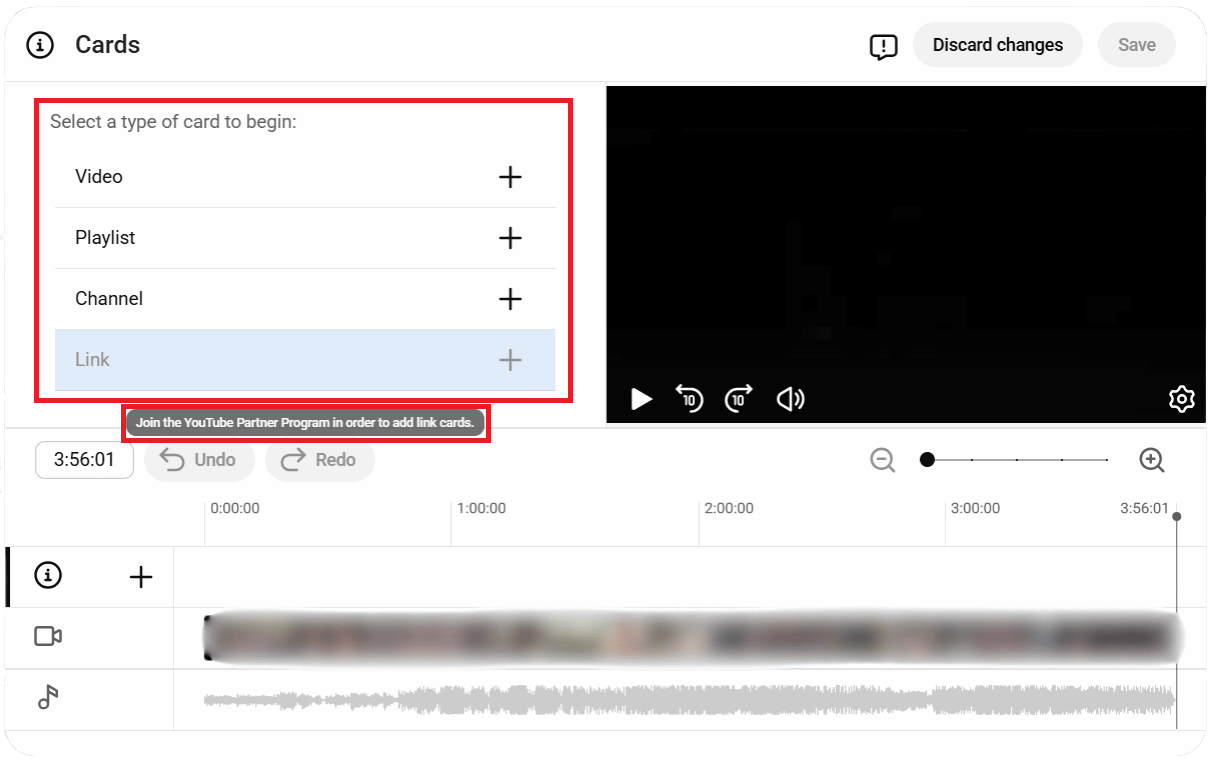
Time each card to the moment the video mentions the resource, since a card that appears too early is easy to ignore.
End Screen Links
End screen links sit in the last 5 to 20 seconds of a video.
The video must be at least 25 seconds long.
The Link element for an outside website needs the YouTube Partner Program, per YouTube’s guide to adding end screens to videos.
Viewers can hide end screens, and they don’t show on mobile web, except iPad mobile web.
You can use an end screen to promote another video, ask viewers to subscribe, or link to your website.
How to add an end screen:
- Select Content from the left menu.
- Click the video you want to edit.
- Select Editor from the left menu.
- Select End screen.
- Choose an element, such as Video, Subscribe or Link.
- Enter the required details and click Save.

Say the next step out loud before the end screen appears, so viewers know what to click.
Links in YouTube Shorts
Links typed into Shorts descriptions or Shorts comments aren’t clickable, a rule YouTube says reduces spam and scam attempts.
A Short can still send viewers to one of your long-form videos through the Related Video link.
Point Shorts viewers to a long-form video, then put your website link in that video’s description.
How to Track Clicks From Your YouTube Links
You track YouTube clicks by adding UTM parameters to every link you place on YouTube.
Then read the visits in Google Analytics 4 (GA4).
UTM parameters are short tags at the end of a URL that tell your analytics where a visit came from.
Google’s guide to collecting campaign data with custom URLs lists the main tags, including utm_source, utm_medium, utm_campaign and utm_content.
How to Tag a YouTube Link
Tag a YouTube link by adding the same source value to every link, because Google recommends one utm_source per platform.
Name the campaign after the video, and use utm_content to tell placements apart.
A tagged description link looks like this:
https://yoursite.com/checklist/?utm_source=youtube&utm_medium=video&utm_campaign=link-audit-video&utm_content=description
The pinned comment link for the same video would end in utm_content=pinned-comment instead.
Keep every value lowercase and spelled the same way each time, so one campaign never splits into several rows.
How to Read YouTube Traffic in GA4
Read your YouTube traffic in the Traffic acquisition report, found under Acquisition in GA4.
Google’s help page says that report shows Session source/medium, Session source and Session campaign for tagged visits.
Session campaign lets you compare videos, because each row carries the campaign name you chose.
For end screens, YouTube Analytics also reports an End screen element click rate on the Engagement tab.
Judge each link by what visitors do after they land, not by how many people watched the video.
Backlinks From Website to Your YouTube Videos
A backlink from a website to your YouTube video is a link on another site that uses your video as a reference.
The link points at the video, so the benefit lands on that video, not on your website.
These links mainly help with discovery: search engines find the video, and readers who care about the topic click through.
They also fit a wider SCO marketing approach that builds visibility across several platforms.
Viewers who arrive from a relevant article already care about the topic, and that’s the audience you want watching.
Say a travel blog writing about a first trip to Paris links to your Paris street tour.
Its readers get a real look at the streets, and your video gets viewers who want exactly that.
Video Links vs Channel Links
Links to individual videos do more for discovery than links to a channel homepage.
A video covers one clear topic, so the reason for the link is obvious to readers and search engines.
Channel links work best for brand or creator mentions, where the credit goes to you rather than to one video.
Links From YouTube to Your Website
Links from YouTube to your website are the links you place on YouTube itself, such as in descriptions and pinned comments.
They exist to send viewers to a related resource.
Say a creator makes a video based on your step-by-step guide and links to it in the description.
Viewers who want the detail click through, and your site gets visitors already interested in the topic.
How Google Treats YouTube Links
Google gets a nofollow hint on YouTube description links, and those links point at YouTube’s redirect rather than at your site.
We checked a Google Search Central video on 28 September 2026.
Every description link pointed to a youtube.com/redirect address and carried rel="nofollow".
The channel’s profile links also went through youtube.com/redirect.
So treat YouTube links as a source of visitors, not a ranking shortcut.
Why Nofollow YouTube Links Still Matter
Nofollow YouTube links still matter because the visitors they send arrive with context and intent.
Someone who clicks from a tutorial already watched you explain the topic, so they land ready to read more.
Repeated links from helpful videos also build brand recognition, as viewers start to connect your name with the topic.
Some of those visitors later cite your site on their own pages, and those links can be dofollow.
Why YouTube Backlinks Matter
YouTube backlinks matter because they spread a video’s reach beyond YouTube search and recommendations.
That value shows up in three ways.
Visibility
Links from other websites raise a video’s visibility by putting it in front of readers who never searched YouTube.
Search engines also find the video through those pages.
Trust
Other sites referencing your video builds trust with the people who find it.
That trust doesn’t move rankings by itself, but it makes people more willing to click, watch and share.
Long-Term Growth
Links support long-term growth because they keep sending interested viewers long after a video’s launch week.
Each viewer who shares the video creates another path for the next one.
Common Mistakes to Avoid
The most common mistakes with YouTube links come from expecting fast SEO results.
Each one below costs you either trust or traffic.
Expecting Direct Ranking Boosts
Expecting YouTube links to boost your Google rankings directly sets you up for disappointment.
Description links are nofollow, so their value is traffic and visibility.
People who expect rankings often quit tactics that were working, just not in the way they expected.
Using Automated Backlink Tools
Automated backlink tools create YouTube links from low-quality, unrelated sites that rarely send real viewers.
Google’s spam policies name using automated programs or services to create links as an example of link spam.
Linking to Irrelevant Pages
Linking to irrelevant pages breaks the viewer’s trust in your links.
They click expecting one thing, find another, and leave.
Every link should continue what the video started.
Adding Too Many Links in One Place
Adding too many links to a description or comment makes each one less likely to get clicked.
One or two links with a clear reason to click beat a long list.
Treating YouTube Links as SEO Shortcuts
YouTube links aren’t SEO shortcuts, because their job is to guide interested viewers to a helpful resource.
Focus on helping the viewer, and your results stay consistent.
Ignoring Viewer Experience
Ignoring the viewer experience gets your links ignored in return.
Say why the link exists and what the viewer gets, and more people will trust it enough to click.
How to Check YouTube Video Backlinks
Checking YouTube video backlinks means finding which external websites link to a specific YouTube video URL or to your YouTube channel page.
Standard link checkers treat a YouTube URL like any other URL, so any backlink tool can run the check.
Check Backlinks for a YouTube Video Using Ahrefs
- Open Ahrefs Site Explorer and paste the full YouTube video URL (for example,
https://www.youtube.com/watch?v=VIDEOID) into the search bar. - Set the mode to URL (not Domain or Subdomain) so results focus on that specific video, not all of YouTube.
- Click Backlinks in the left menu. You see every external site linking to that video, with anchor text, DR score, and traffic estimates.
- Filter by Dofollow to isolate links that pass ranking signals.
Check YouTube Video Backlinks Using Semrush
- Go to Semrush Backlink Analytics and enter the YouTube video URL.
- Click Analyze. Semrush shows referring domains, total backlinks, and authority scores for linking pages.
- Use the Export button to download a CSV if you want to track link growth over time.
What to Look for When Checking YouTube Backlinks
When checking YouTube backlinks, look at four things:
- Referring domain count: how many unique sites link to the video
- Anchor text variety: branded versus keyword anchors
- DR or DA of linking pages: a rough read on each linking site’s strength
- Traffic on linking pages: pages with real traffic send referral views, not just SEO signals
Where to Start
Start with your best video and check its backlinks in Ahrefs or Semrush today.
Then find three articles on the same topic that don’t include a video, and send each one a short pitch.
Tag the link in that video’s description while you’re there, so next month’s GA4 report shows what it earned.
Frequently Asked Questions
Do YouTube backlinks help with SEO?
Yes, indirectly. Links inside YouTube are nofollow, so they don’t pass link equity the way editorial links do. They help SEO by sending referral visitors, building brand recognition and helping your videos get discovered through other sites.
Are YouTube backlinks safe and white hat?
Yes, when you earn them. Links from creators and sites that chose to reference your video are safe. Automated link tools are not, because Google’s spam policies name automated link creation as link spam.
Do YouTube backlinks help with branded search results?
They help people connect your channel and your website. Both are separate pages that can show up when someone searches your brand name. Linking your site from your channel profile, and your channel from your site, shows visitors that both belong to you.
Can embedded videos help with SEO or drive traffic?
Embedded videos drive views, but an embed alone isn’t a standard backlink. YouTube’s embed code is an iframe. Add a text link under the embed if you want a normal link to the video. Embeds on your own posts also let readers choose to watch instead of read.
Can YouTube backlinks replace traditional SEO backlinks?
No. YouTube description links are nofollow, so they can’t replace editorial dofollow links from relevant websites. Use them for referral traffic and brand visibility alongside the rest of your link building.
Are links in YouTube Shorts clickable?
No, not in Shorts descriptions or Shorts comments. YouTube made those links non-clickable to reduce spam and scam attempts. Use the Related Video link to send Shorts viewers to a long-form video, where description links can be clickable.
Are YouTube links dofollow?
No. The video description links we checked on 28 September 2026 carried a nofollow attribute. They also passed through a youtube.com/redirect address instead of linking straight to the website. Rely on YouTube links for visitors, and earn dofollow links from other websites for rankings.
Need backlinks for your YouTube video?
We help YouTube videos earn relevant, manual backlinks through ethical outreach and real placements.